

In e-commerce across the GCC and Oman, email open rates hover between 12% and 18%, while WhatsApp messages achieve an average open rate of 98% within the first 15 minutes.
When an online shopper abandons their shopping cart or wonders where their shipment is, waiting for an email or checking spam folders leads to lost revenue. By connecting your WooCommerce or Shopify store directly to WhatsApp, you turn high-intent moments into completed sales.
In this comprehensive guide, we walk step-by-step through installing the official Fizmoh Connect for WooCommerce plugin, configuring automated abandoned cart recovery with interactive buttons, syncing live shipment tracking, and connecting Shopify stores.
Why WhatsApp for E-Commerce?
Standard SMS notifications lack branding, support no interactive buttons, and cost significantly more per message. WhatsApp Cloud API provides: - Verified Business Profile: Displays your store name, logo, website, and green verified badge. - 1-Click Interactive Buttons: Quick Reply buttons (`[Need Help?]`) and Direct URL Call-to-Action buttons (`[Complete Order]`, `[Track Shipment]`). - 1-Click Cart Restoration: Deep links automatically restore the customer's cart items, quantities, and apply recovery coupon discounts instantly. - Unified Two-Way Customer Inbox: If a customer replies with questions about sizing or shipping to Muscat or Dubai, your team answers immediately inside the Fizmoh CRM inbox.
Step 1: Download & Install Fizmoh Connect for WooCommerce
Fizmoh provides an official, dedicated WordPress plugin engineered specifically for modern WooCommerce setups:
- 1Download the Plugin Package:
- 2 Download the latest release directly:
- 3 **Download Fizmoh Connect for WooCommerce (.zip)** (v1.0.0, 17 KB)
- 4Install in WordPress:
- 5 - Log into your WordPress Admin Dashboard.
- 6 - Navigate to Plugins → Add New Plugin → Upload Plugin.
- 7 - Select `fizmoh-connect-for-woocommerce.zip` and click Install Now.
- 8 - Once uploaded, click Activate Plugin.
- 9Verify HPOS Compatibility:
- 10 - Fizmoh Connect includes native declaration for WooCommerce High-Performance Order Storage (`custom_order_tables`).
- 11 - Navigate to WooCommerce → Settings → Advanced → Features to confirm no incompatibility flags exist.
Step 2: Store Pairing & API Credentials
Once activated, link your WordPress store to your Fizmoh workspace:
- 1Open your Fizmoh Dashboard and navigate to Settings → E-Commerce & Stores → Connected Stores.
- 2Click Add Store Connection, choose WooCommerce, and enter your Store Name and Domain URL (e.g., `https://yourstore.com`).
- 3Click Generate Pairing Credentials. You will receive:
- 4 - Store Key: `fiz_store_...`
- 5 - Fizmoh API Endpoint: `https://app.fizmoh.cloud/api/ecommerce`
- 6In your WordPress Admin, go to WooCommerce → Fizmoh Connect Settings.
- 7Paste your Store Key and verify the Endpoint URL.
- 8Click Test Connection. You should see a green success indicator: `Connected to Fizmoh Cloud Workspace`.
Step 3: Real-Time Abandoned Cart Typing Capture
Nearly 70% of e-commerce shopping carts are abandoned before payment. Traditional abandoned cart plugins only trigger if the shopper reaches the final step and submits the form.
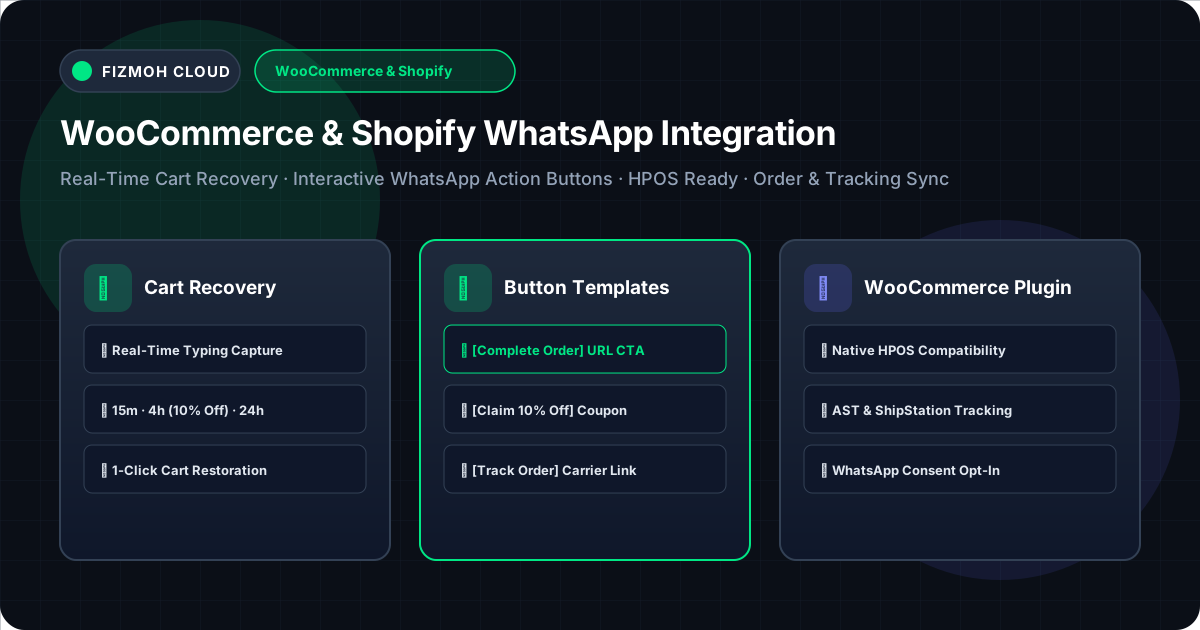
Fizmoh Connect solves this with Real-Time Typing Capture: - When a customer types their phone number into the checkout billing or shipping fields, a debounced (1,200ms) client-side event captures the phone number and current cart contents. - The cart token, items list, total value, and currency (e.g., `OMR` or `AED`) are securely registered with Fizmoh. - Automated 3-Stage Recovery Timeline: - Stage 1 (15 Minutes): Gentle reminder with a direct `[Complete Order]` button. Restores the exact cart session in one click. - Stage 2 (4 Hours): High-converting incentive with an automated `10% Off` coupon code pre-applied to the restored cart link. - Stage 3 (24 Hours): Urgency reminder notifying the customer that reserved stock will be released.
When the customer completes their order, Fizmoh automatically marks the cart as Recovered and halts subsequent recovery messages immediately.
Step 4: Interactive Button Templates
Unlike plain text alerts, Fizmoh provides default interactive WhatsApp templates out of the box equipped with Call-to-Action (CTA) URL buttons and Quick Reply buttons:
| Event | Notification Purpose | Button 1 (CTA URL) | Button 2 (Quick Reply) |
| Order Placed | Immediate confirmation & invoice link | `[Track Order]` | `[Contact Support]` |
| Processing | Kitchen or warehouse packing update | `[View Order]` | `[Need Changes?]` |
| Shipped | Dispatched with tracking number | `[Track Shipment]` | `[Delivery Help]` |
| Delivered | Confirmation & review solicitation | `[Leave Review]` | `[Shop Again]` |
| Abandoned Cart 1 | 15-minute quick recovery | `[Complete Order]` | `[Need Help?]` |
| Abandoned Cart 2 | 4-hour recovery with 10% coupon | `[Claim 10% Off]` | `[Ask Question]` |
| Newsletter Welcome | Welcome gift & discount code | `[Shop Now]` | - |
In Settings → E-Commerce & Stores → Templates & Buttons, you can preview each message bubble live, send a test message to your personal WhatsApp number, or toggle to map your own custom Meta-approved templates.
Step 5: Order Status & Live Shipment Tracking
Customers want to know exactly where their parcel is. Fizmoh Connect hooks into WooCommerce order status changes and extracts tracking data automatically:
- Supported Tracking Plugins:
- - Advanced Shipment Tracking (AST): Reads tracking number, carrier name (Aramex, DHL, Oman Post, SMSA, etc.), and generated tracking link.
- - WooCommerce Shipment Tracking: Official WooCommerce extension fields.
- - ShipStation & Custom Metadata: Reads custom tracking keys automatically.
- Automatic Dispatch: When an order transitions from *Processing* to *Completed* or *Shipped*, Fizmoh dynamically inserts the carrier tracking URL into the WhatsApp `[Track Shipment]` button.
Step 6: WhatsApp Newsletter Opt-In
Building a clean, compliant WhatsApp audience requires explicit customer opt-in: 1. Checkout Checkbox: Fizmoh Connect automatically injects an opt-in checkbox into the WooCommerce checkout page: > *"Receive order updates, tracking alerts, and exclusive VIP offers on WhatsApp."* 2. Shortcode for Custom Pages: Place `[fizmoh_newsletter_box]` on your homepage, blog, or landing pages to collect WhatsApp subscribers with name and phone number. 3. Automated Welcome Gift: Upon subscription, Fizmoh immediately dispatches a welcome template with a discount coupon button. 4. Consent Timestamp: Every subscriber record includes a verified ISO-8601 consent timestamp for compliance.
Step 7: Connecting Shopify via Webhooks
If you operate a Shopify store, you can connect it directly using Fizmoh's secure Shopify webhook endpoint:
- 1In your Shopify Admin, go to Settings → Notifications → Webhooks.
- 2Create webhooks pointing to:
- 3 `https://app.fizmoh.cloud/api/ecommerce/webhooks/shopify`
- 4Select the following event topics:
- 5 - `orders/create`
- 6 - `orders/updated`
- 7 - `orders/fulfilled`
- 8 - `checkouts/create` & `checkouts/update`
- 9In your Fizmoh Dashboard under Connected Stores, enter your Shopify Shared HMAC Secret. Fizmoh automatically verifies all incoming requests using HMAC SHA-256 signatures (`X-Shopify-Hmac-Sha256`).
Summary & Next Steps
Integrating WhatsApp with WooCommerce and Shopify transforms your e-commerce operations from slow email notifications to instant, high-converting mobile conversations.